
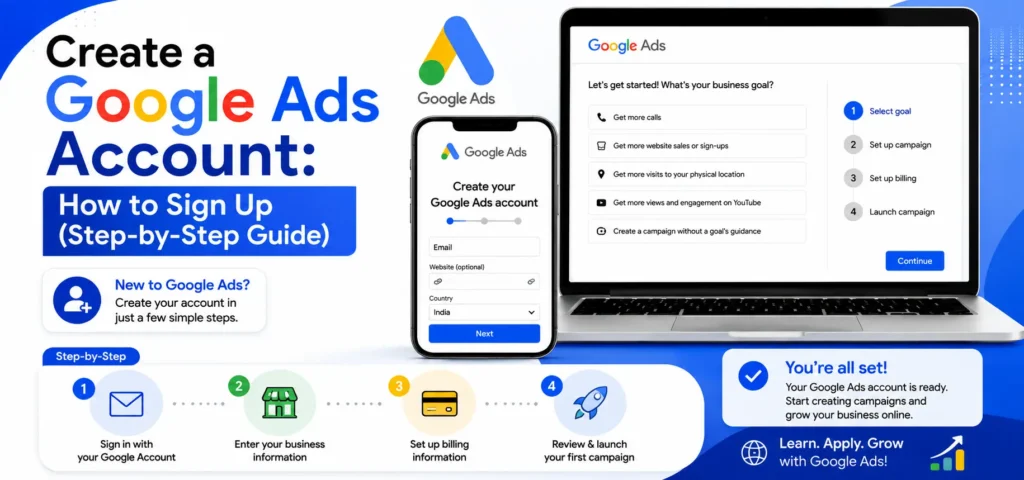
Creating a Google Ads account is the first step toward promoting your business online through Google Search, YouTube, Gmail, and millions of partner websites.
Google Ads allows businesses of all sizes to reach potential customers at the exact moment they are searching for related products or services. Below is a detailed, easy-to-follow guide on how to create and set up your Google Ads account successfully.
10 Steps to Create a Google Ads Account
Step 1: Visit the Google Ads Website
Start by opening your web browser and going to the official Google Ads platform. Once the page loads, click on the “Start now” button. This will take you to the account creation page where the signup process begins.
Step 2: Sign In With a Google Account
You’ll be asked to sign in using a Google account. If you already use Gmail or any other Google service, you can use the same login. If you don’t have a Google account, create one first by following Google’s instructions. This account will be used to manage all your advertising activities.
Step 3: Choose Your Advertising Objective
Google Ads will ask you to select a primary advertising goal, such as increasing website traffic, generating leads, getting phone calls, or driving store visits. These goals help Google recommend campaign settings. If you prefer full control, select “Create an account without a campaign” to skip this step and set campaigns later.
Step 4: Add Your Business Information
Next, enter your business name and website URL. You may also be asked to select your business location and time zone. It’s important to choose the correct time zone because it cannot be changed later and affects reporting and billing schedules.
Step 5: Set Up Your First Campaign (Optional)
If you continue with campaign creation, Google will guide you through setting up your first ad. This includes selecting your target audience, choosing keywords, writing ad copy, and setting a daily budget. Beginners who are unsure can skip this step and configure campaigns after completing account setup.
Step 6: Choose Your Budget and Bidding
Google Ads allows you to control how much you spend. You’ll set a daily budget and choose a bidding strategy, such as maximizing clicks or conversions. Google Ads follows a pay-per-click model, meaning you only pay when someone clicks on your ad, not when it’s shown.
Step 7: Add Billing and Payment Details
To activate your account, you must provide billing information. Add your payment method, such as a credit card, debit card, or bank account (depending on your country). Google may verify your payment details before ads begin running.
Step 8: Review Account Settings
Before finalizing, review all entered details carefully. Check your business information, billing settings, campaign preferences, and time zone. Making sure everything is accurate helps avoid issues later.
Step 9: Submit and Activate Your Account
Once everything looks correct, submit your information. Your Google Ads account will be created instantly. Ads usually go through a review process before going live, which may take a few hours to a day.
Step 10: Optimize and Monitor Performance
After activation, regularly monitor your account dashboard. Track impressions, clicks, conversions, and costs. Over time, optimize keywords, ads, and budgets to improve performance and return on investment.
Final Thoughts
Creating a Google Ads account is a straightforward process, but careful setup makes a big difference in results. Start with clear goals, a controlled budget, and continuous monitoring. With the right approach, Google Ads can become a powerful tool to grow your business, attract qualified leads, and increase sales effectively.
Ready to grow faster? Book Google Ads Services today to reach high-intent customers, generate quality leads, maximize ROI, and scale your business with expert-managed campaigns.